underclocking my laptop gpu
the result is interesting...
the initial thought came when i was about to go on bed at 3 AM after playing some TDS with my pal over Discord. i was thinking,
“what if i dont want to squeeze all that performance?”
“what if i underclock my gpu while still trying to make the performance butter smooth?”
i went to chatgpt and asked about this underclocking shenanigans.
first, i have to benchmark my gpu using unigine superposition at heavy load to find out how much power does the gpu draw on my laptop. according to this data at lact, the gpu clocked peaked at 2500-ish megahertz and the benchmark result.
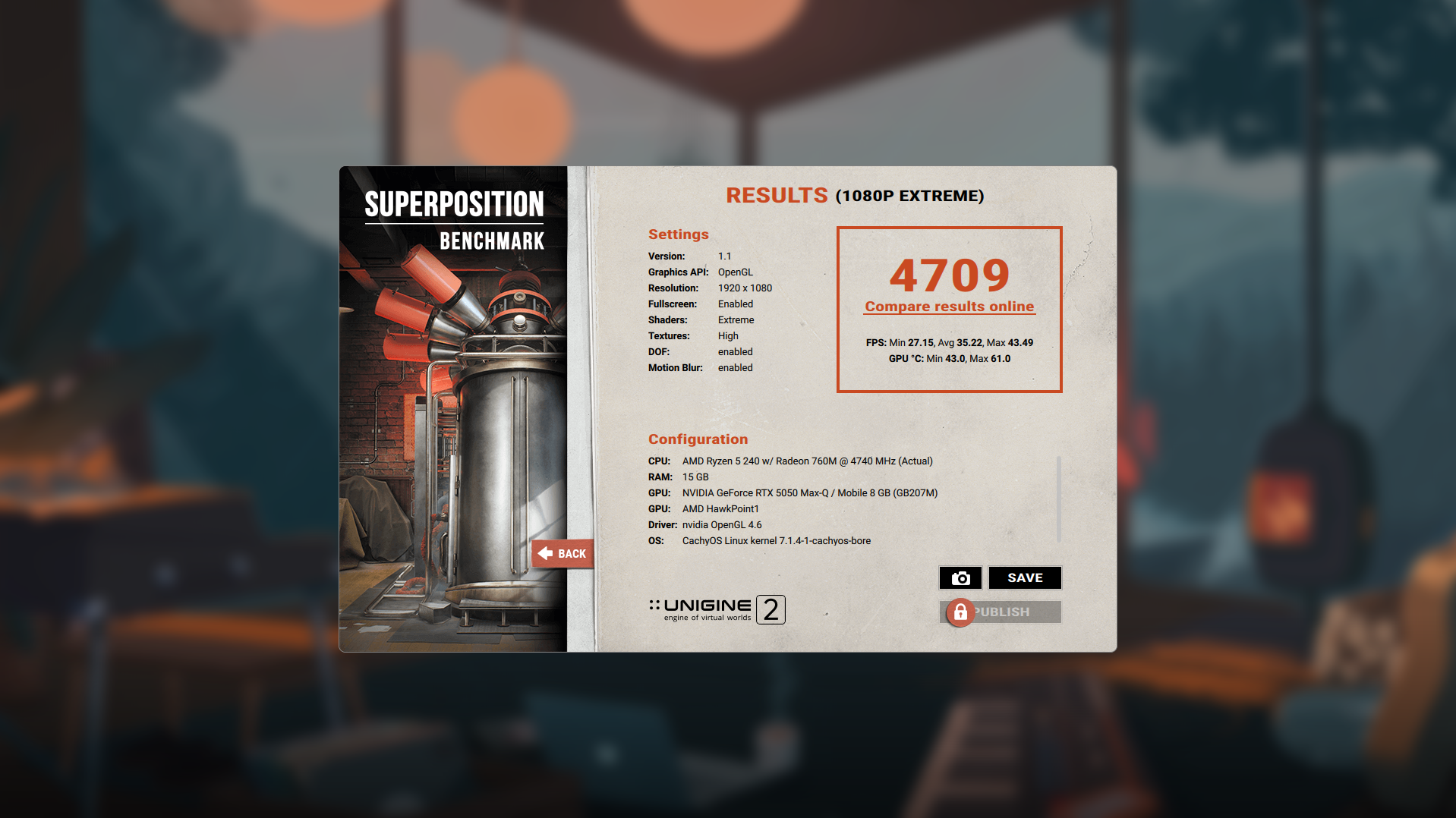
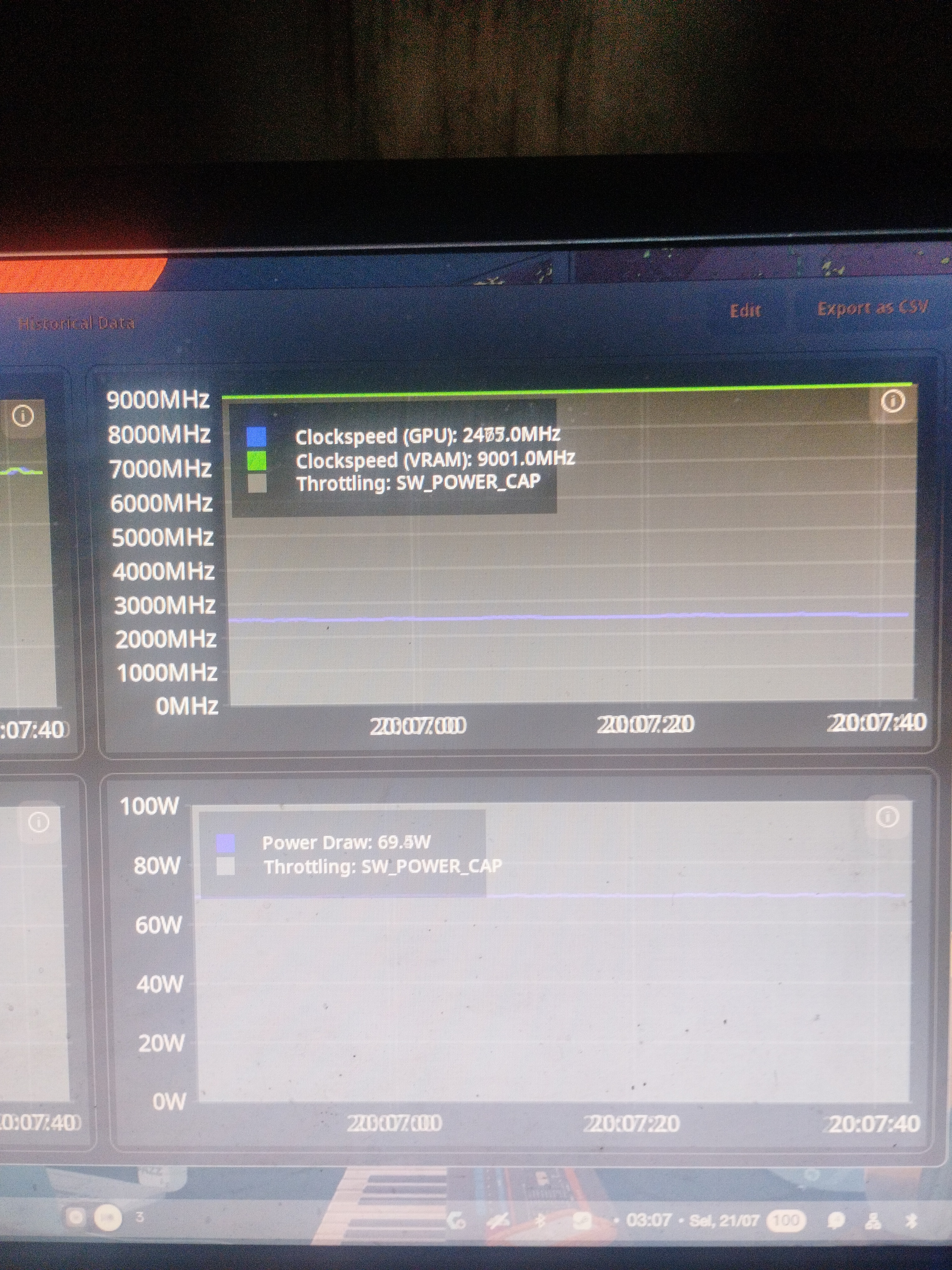
i tried lact (since i found that solution on google) and refer chatgpt to use that. i used that under the instructions of what chatgpt gave me and for some reason it did not work? the page said that it works with nvidia but i cant seem to get it working.
changing plans, that thing dont work.
chatgpt told me to use the built-in nvidia settings (oh god it’s ugly), while it did “set” my value, the settings app ignored the value that i’ve set to that thing, so i’m kinda lost. like, are overclocking/underclocking windows-only thing? i dont want to use windows for the sole purpose of just underclocking my gpu, that would be silly.
i asked chatgpt about methods that were available at the time. i was quite devastated on this whole underclocking fiasco, knowing that every method that it suggested don’t even work.
until,… it spat out this:
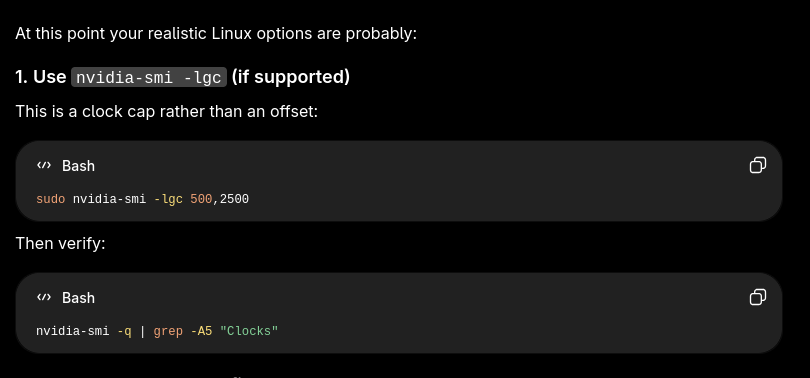
at the time i was kinda hopeless and dont even want to run that command at all after all of the failures to get my gpu to clock down. heck, i even tried to underclock it at 2000mhz out of desperation. i ran it, with little to no hope. ran the benchmark again, and….
IT WORKED!
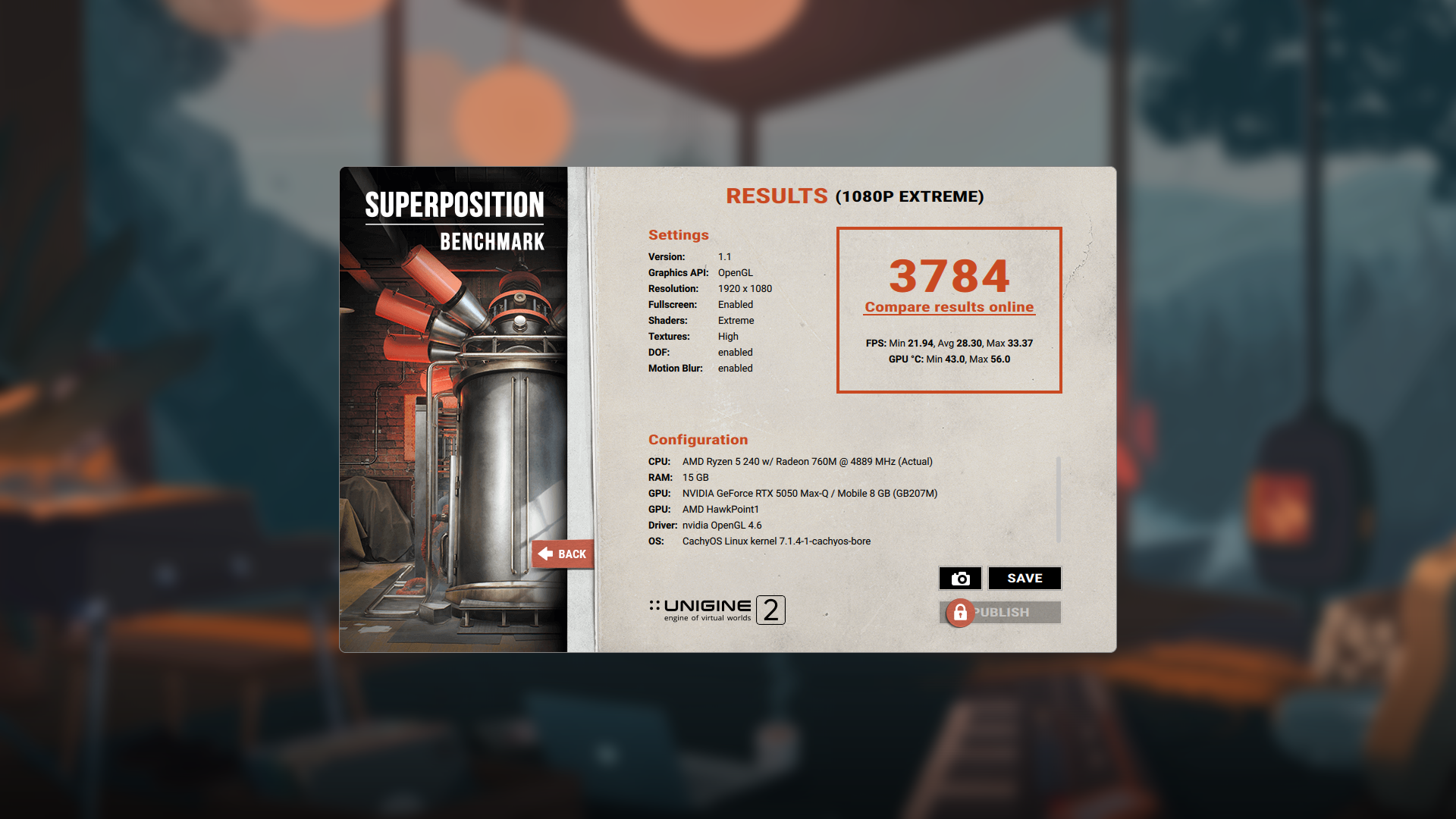
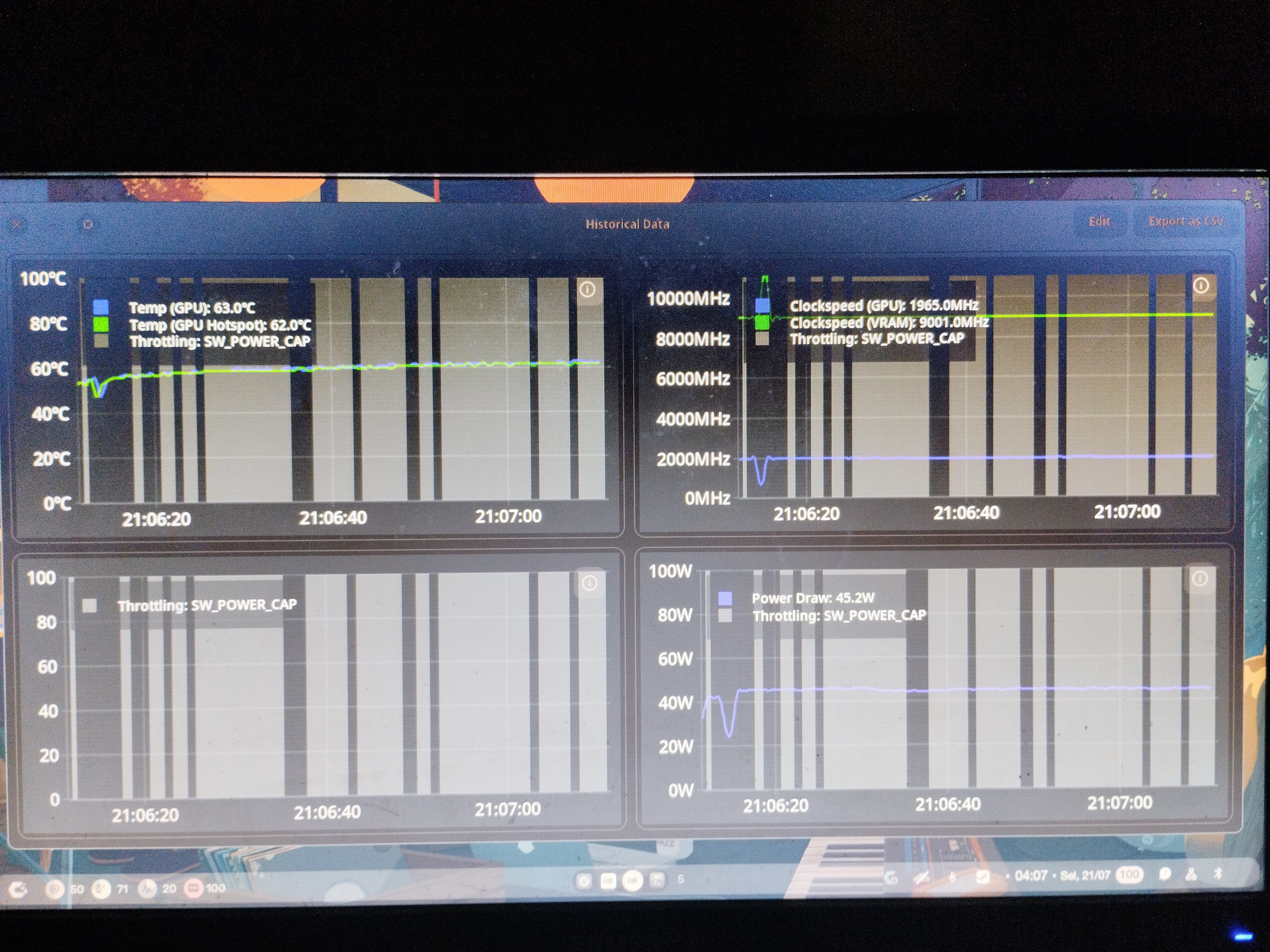
thank you nvidia-smi, very cool :thumbsup:
but now with that outta the way, i am more interested… what if i ran the legendary batman arkham knight that was made a decade ago?
alright, it’s test time!
all of the gameplay tests was done with the following settings:
- fan set to auto
- maxed out graphics
- power plan set to performance
- mangohud for statistics
back to the test:
this is a screenshot of batman arkham knight running idle on a stock speed
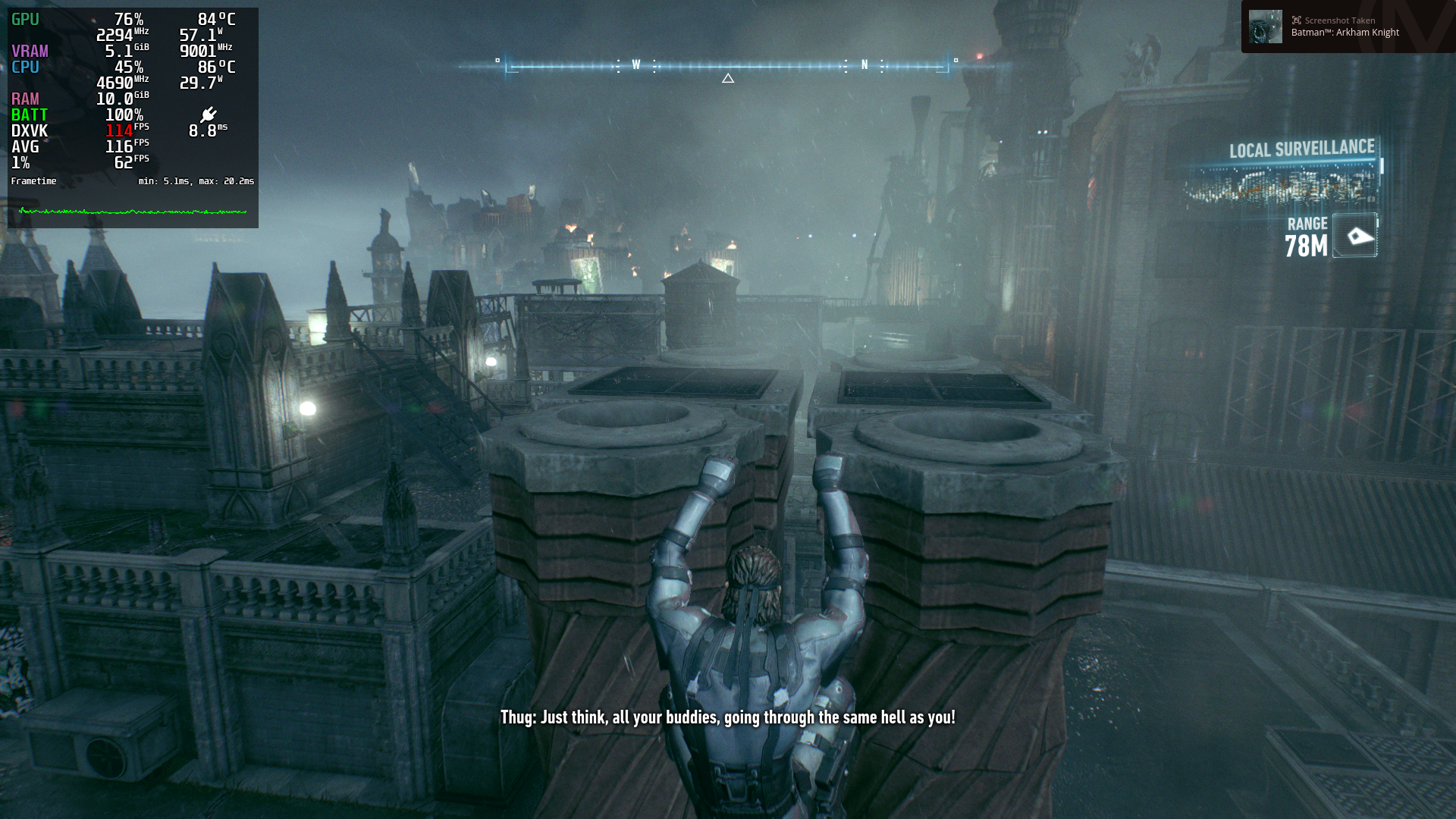
take a look at the GPU section. the fps averages at 116, the gpu utilizes almost 80% (can crank up to 100% when flying) with 84°C. oh, noes! that is flippin hot for the laptop! not to mention that the gpu draws 57w worth of power!
let’s try using 2000mhz of clock speed and see what happens.
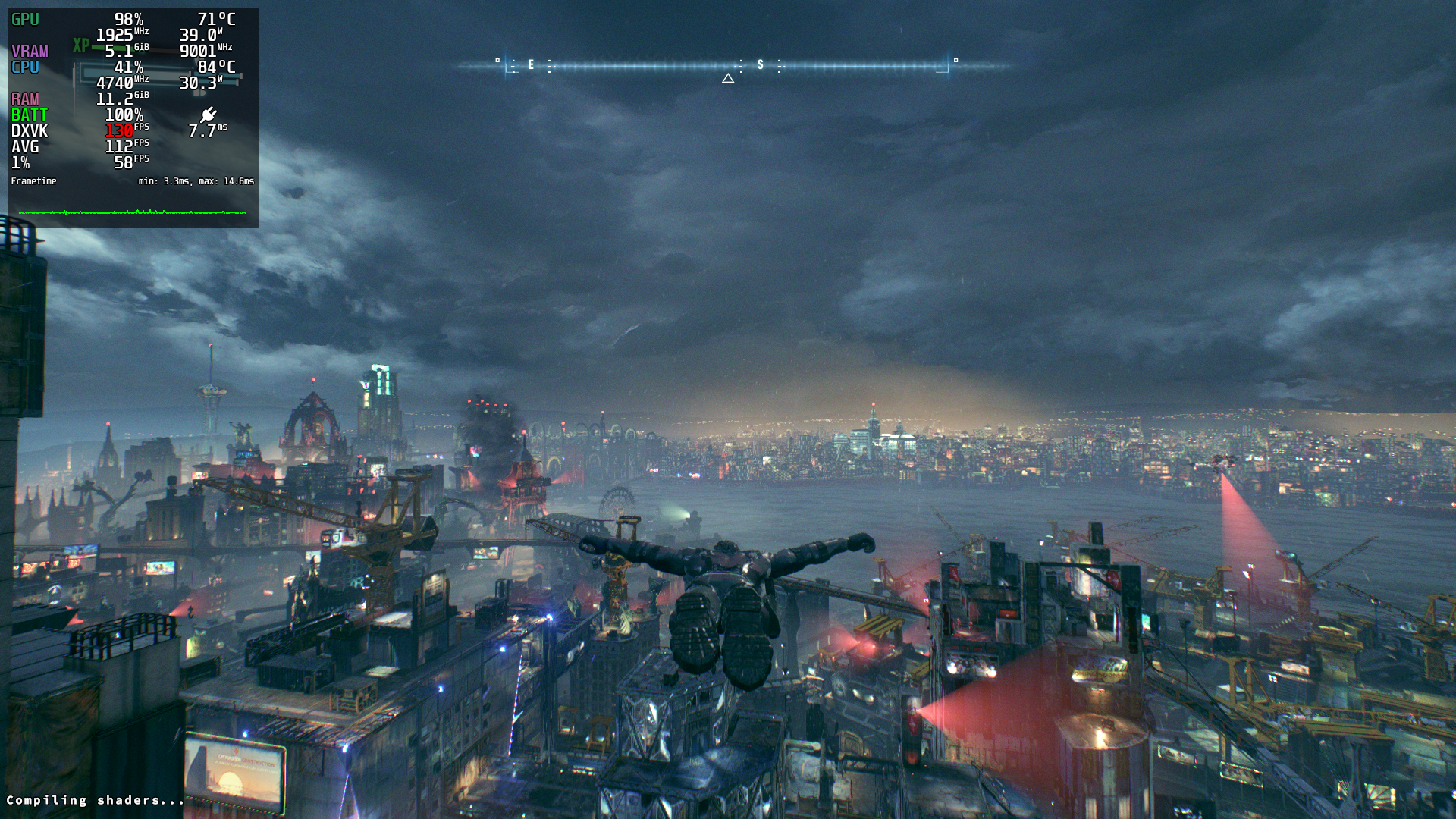
the temps decreased significantly from 84°C to 72°C! i couldnt think any better that by decreasing the clock that much (2400 -> 2000) it could result to make the fps stable while maintaining good temps! heck, i even fight with the thugs to see how the gpu can handle the graphics while fighting.
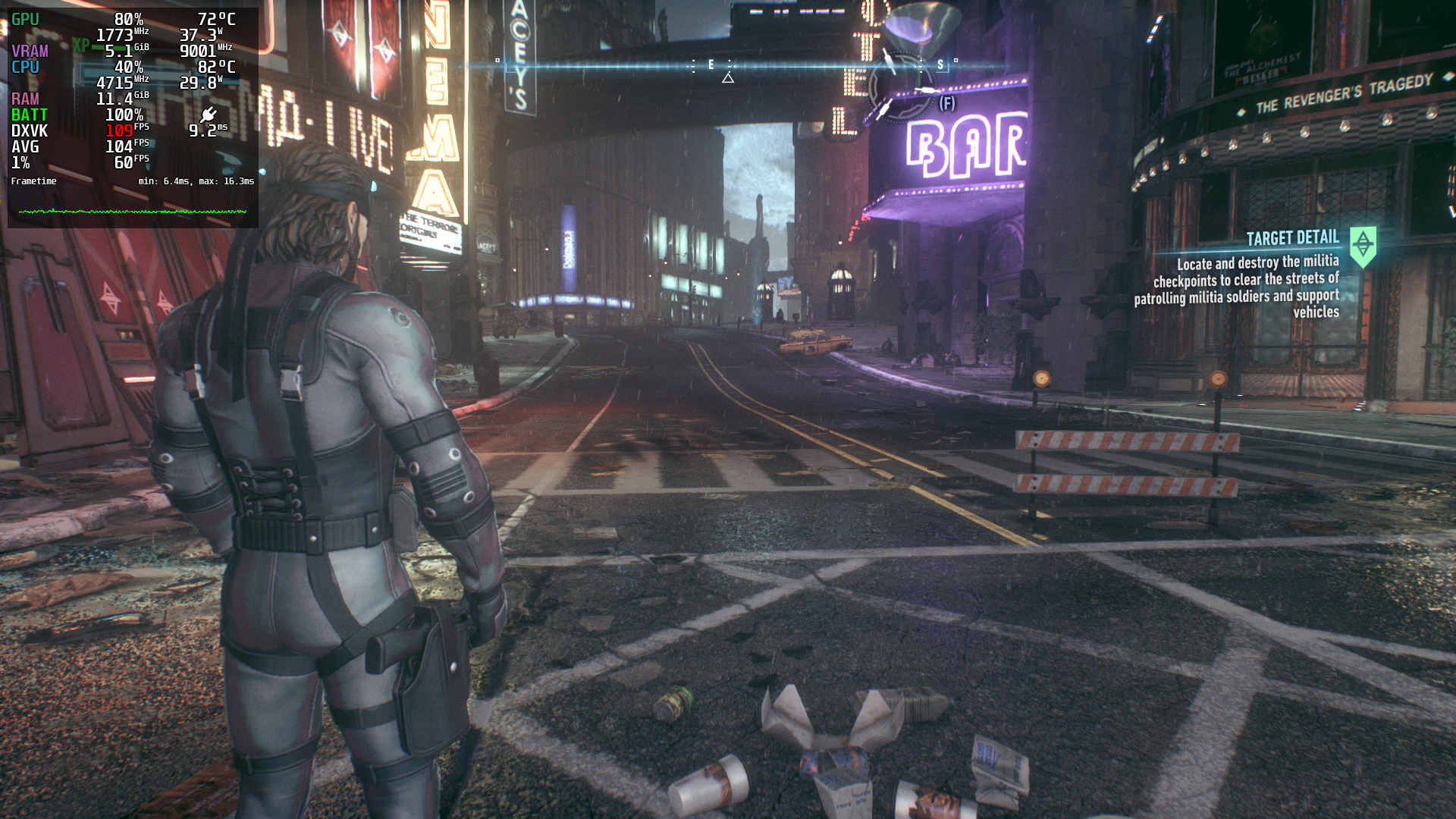
now this is where my curiousity kicks in: what if we can go lower?
without hesitation, i tried reducing the gpu clock again to 1900mhz, and here is the result.

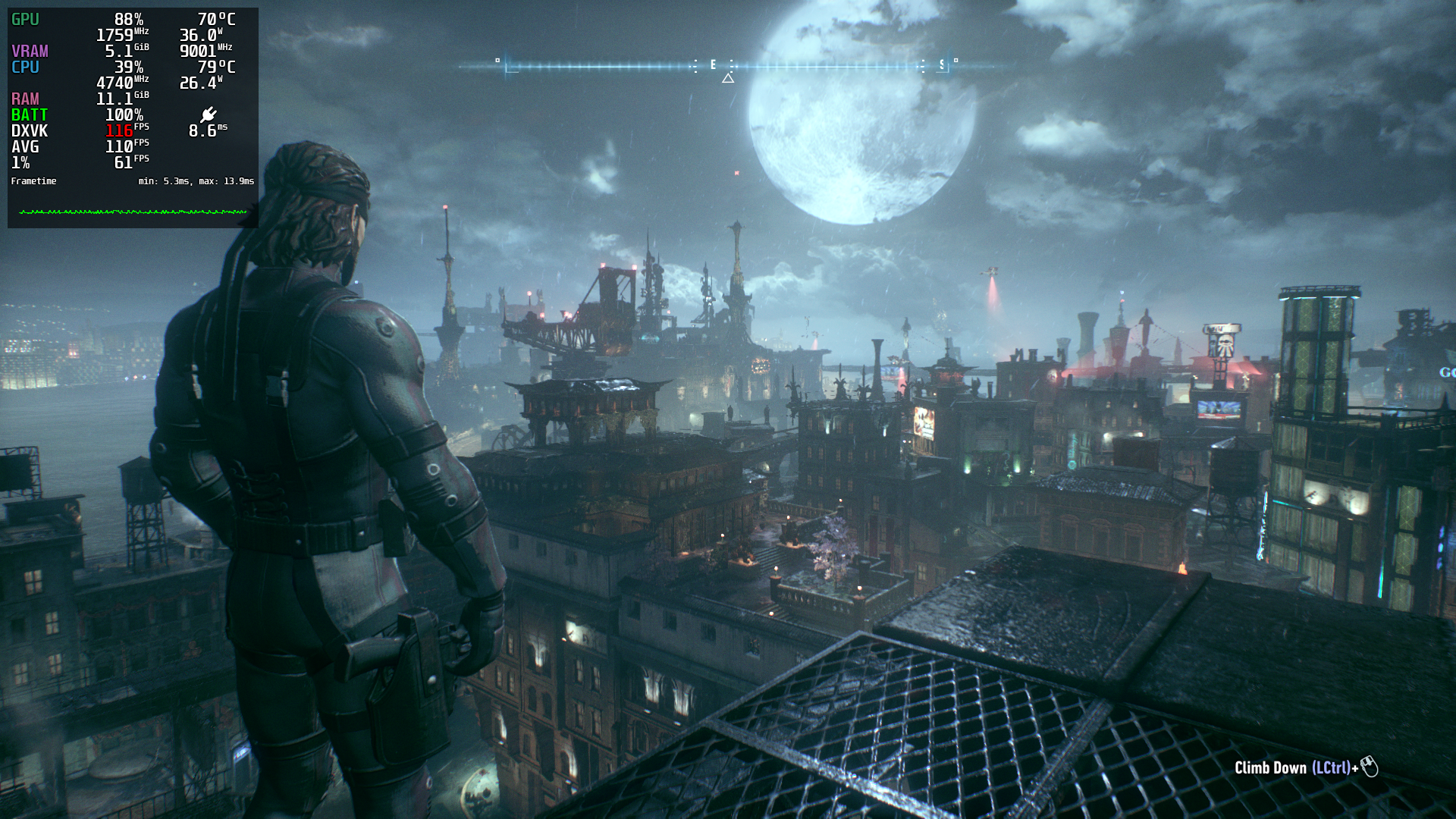
oh, my, god. the result was absolutely phenomenal. 100 fps on average with the clock speed of 1900mhz is absolutely unheard of on a 5050 laptop, holy fucking shit.
i kinda doubted when i saw that stats on mangohud, so i tried causing a fight with the thugs on the street. oh boy, did it not disappoint.
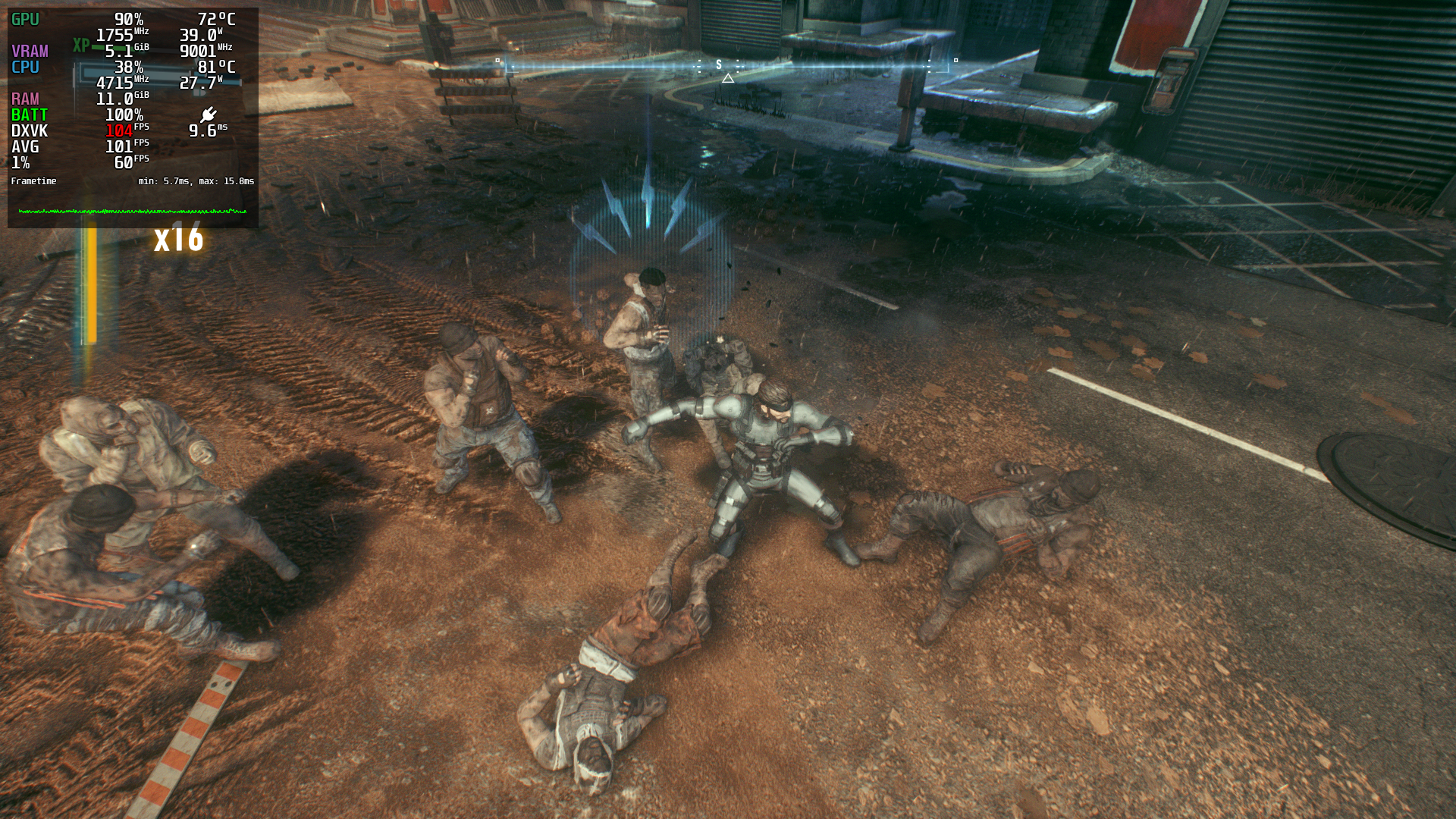

aight, last test. let’s make it 1800mhz
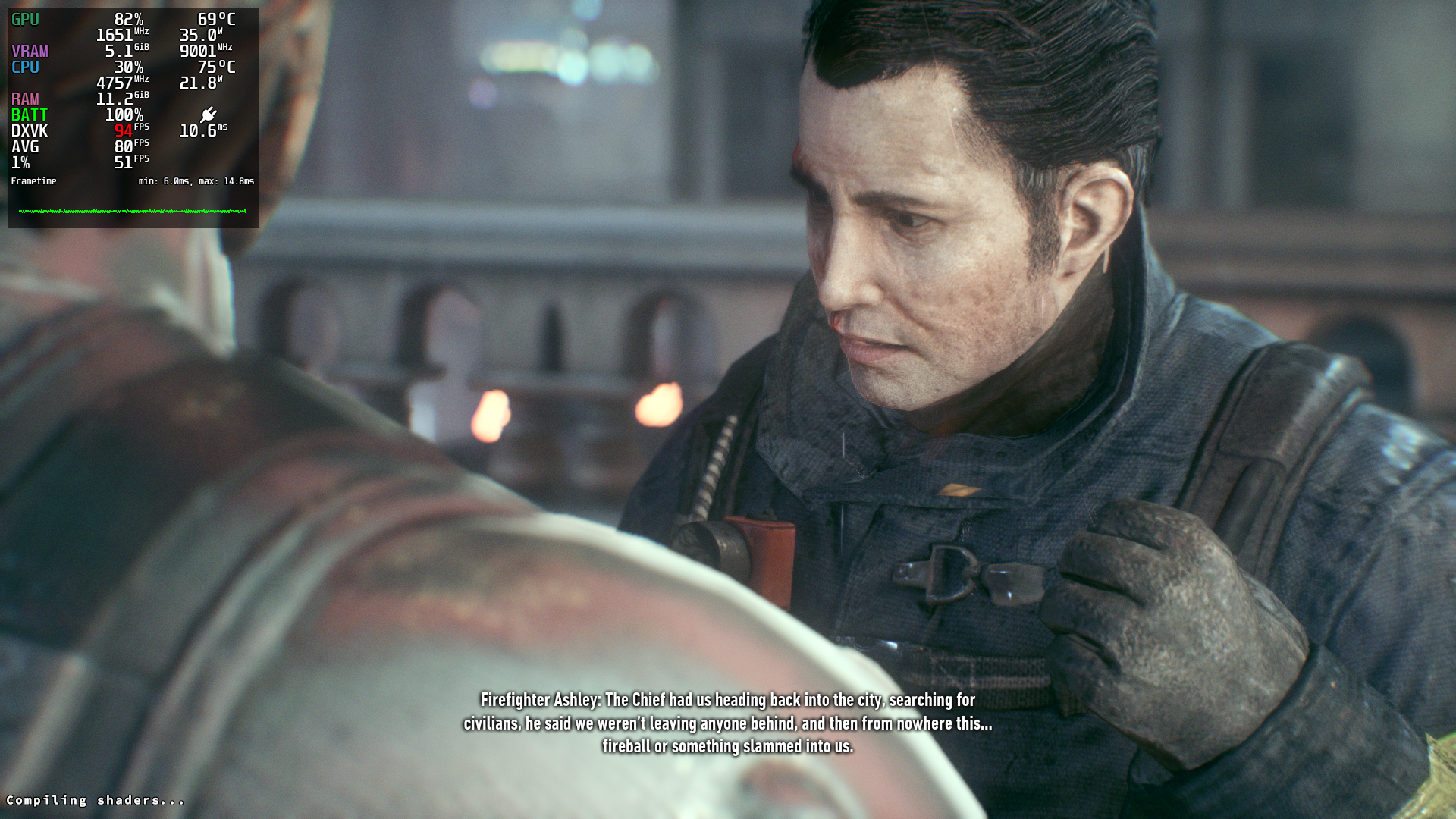
the performance penalty started to kicked in. the average now sits on 90 fps while sitting at 69°C (nice). i didnt pay attention at the power it draws at first, but looking at it, holy shit. 30 flippin watts on power consumption. that’s gotta be the lowest wattage i ever have on a 5050.
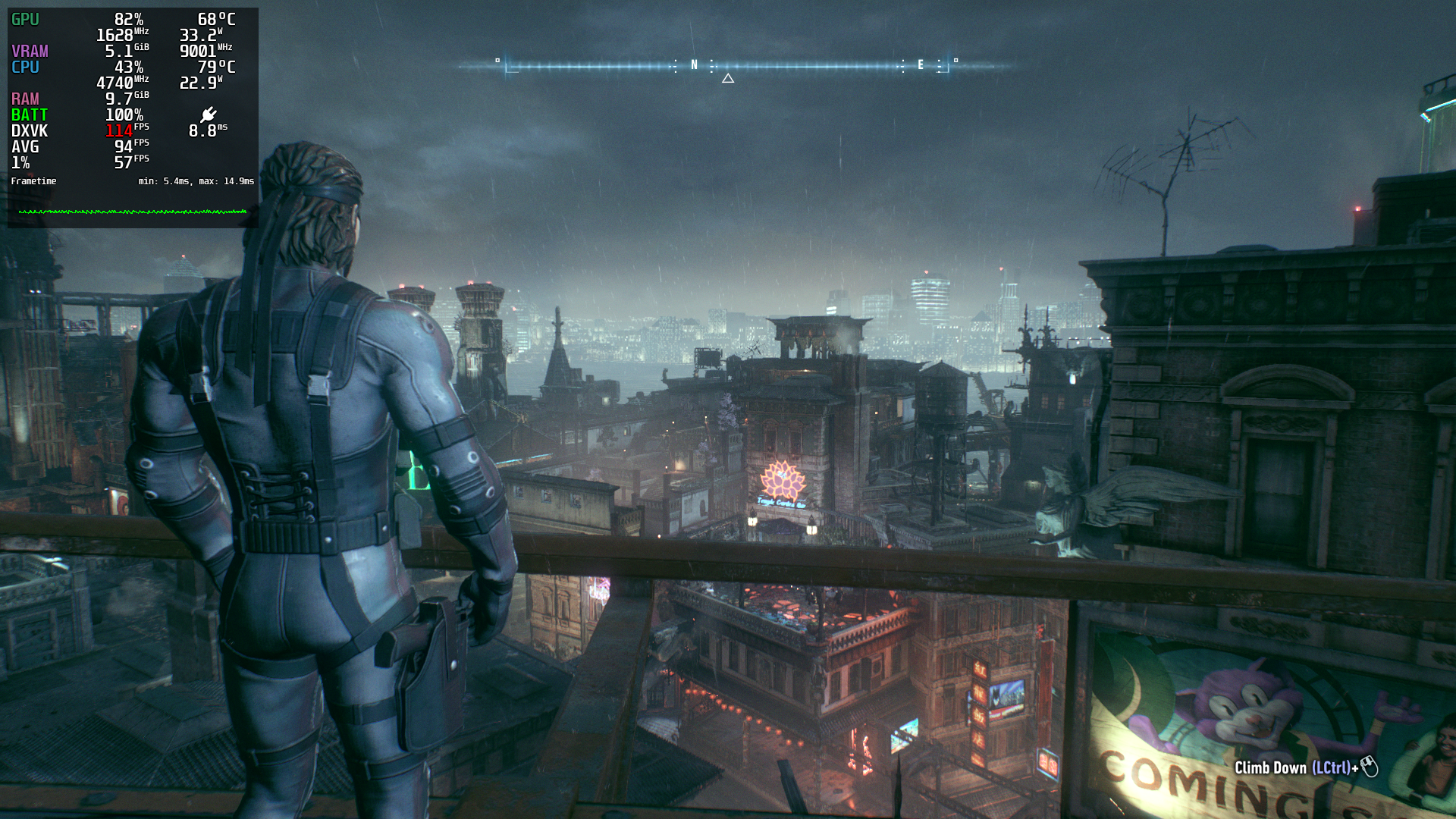
if you are interested with the stats, here ya go
| clock speed | benchmark avg fps | game avg fps | fps lost | gpu temps | power draw | notes |
|---|---|---|---|---|---|---|
| 2500 Mhz (stock) | 35 FPS | 116 FPS | - | 80-84°C | 57-60 W | |
| 2400 Mhz | 33 FPS | - | - | - | - | only benchmark test |
| 2100 Mhz | - | - | - | 66°C (benchmark) | 48-50 W (-16.2%) | only benchmark test |
| 2000 Mhz | 28 FPS | 105 FPS (101-112 FPS) | -9.5% | 71-72°C | 37-40 W (-34.2%) [!] | may be good for daily drive |
| 1900 Mhz | - | 97 FPS (83-106 FPS) | -16.4% | 66-72°C | 32-39 W (-39.3%) | |
| 1800 Mhz | - | 87 FPS (80-94 FPS) | -25.0% | 64-69°C | 30-35 W (-44.4%) | could be good for longevity? needs more thorough test |
now’s the conclusion.
underclocking IS useful aside from setting a power plan with a single click (be it a pc, laptop, or even a phone if one has support). while setting a power plan may be useful, what if you wanted full control of your gpu power? well, underclocking kicks in. it’s a surprisingly effective way to improve GPU efficiency while keeping performance losses relatively low. after testing several clock speeds, i found 2000 MHz to be the sweet spot on my laptop. the power consumption dropped by roughly 34%, and temperatures became significantly lower.
so,… is it worth it? absolutely. even with the tiny tradeoff when underclocked, the game still runs great!
if you wanted to do the same thing as i did here, you can do so here
1
$ sudo nvidia-smi -lgc 500,2000
the command above did not last after reboot, you need to make a systemd service for this
to do this, nano nvidia-underclock.service
1
$ EDITOR=nano sudoedit /etc/systemd/system/nvidia-underclock.service
then, paste this into the file
1
2
3
4
5
6
7
8
9
10
11
12
13
14
15
16
17
18
19
20
21
22
23
[Unit]
Description=Apply NVIDIA GPU underclock
Documentation=https://loominatrx.my.id/blog/posts/underclocking-my-laptop-gpu/
After=multi-user.target nvidia-persistenced.service
Wants=nvidia-persistenced.service

[Service]
Type=oneshot

# Wait until the NVIDIA driver is ready
ExecStartPre=/usr/bin/bash -c 'for i in {1..20}; do /usr/bin/nvidia-smi >/dev/null 2>&1 && exit 0; sleep 1; done; exit 1'

# Apply the graphics clock limit
# You can change `2000` to your desired clock limit, but in this case 2000 is good for most cases.
ExecStart=/usr/bin/nvidia-smi -lgc 500,2000

# Reset power limit after stop
ExecStop=/usr/bin/nvidia-smi -rgc

RemainAfterExit=yes

[Install]
WantedBy=multi-user.target
save that file, then start the service, then verify that it worked
1
2
3
$ sudo systemctl daemon-reload
$ sudo systemctl enable --now nvidia-underclock.service
$ systemctl status nvidia-underclock.service
after that, try play some demanding games and see if the underclock has taken into effect.
the result may vary depending on your gpu you use. i’d recommend testing everything by yourself and find your best sweet spot :D
and that wraps up the underclocking shenanigans today. i’m gonna make a systemd service after publishing this post.